Not registered yet?
Create an account with your NRC and a few details about yourself, then start an application straight away. There's no separate approval to open an account. If an Ornix agent helped you, enter their agent code when you register.
Create an accountHow Ornix works
- Create your accountRegister with your NRC and mobile number. If an Ornix agent helped you, enter their agent code.
- Give your consentSign the consent form so we can check your details with the credit bureau and assess your loan.
- Apply and upload your documentsChoose your loan, see the full cost and repayment dates, then upload the documents we ask for.
- We check and decideOur team verifies your details and lets you know our decision by SMS.
- Sign your agreementRead and sign your Disclosure Statement and Loan Agreement online.
- Receive your moneyWe send the loan, less the one-time processing fee, to your mobile money wallet or bank account.
- Repay by transferSend each repayment to the Ornix account shown on Pay, quoting your loan reference. Your balance updates as soon as we record it.
Getting around
Signing the consent form
Why am I asked to sign this?
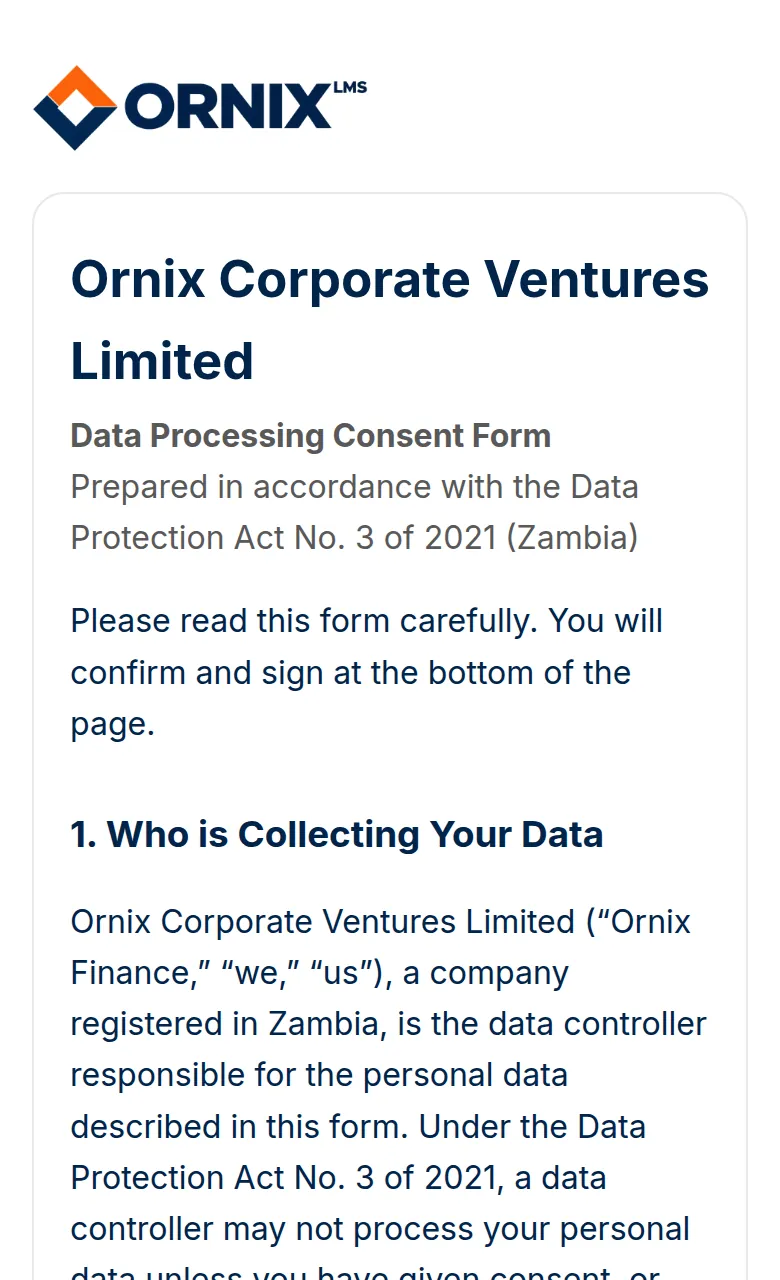
By law we need your permission before we can check your details with the credit bureau or process your personal information to assess a loan. You're shown the form the first time you sign in, and every page is blocked until you either sign it or explicitly decline it. Read it through, then confirm and sign at the bottom of the page.
What if I decline?
You can decline on the same screen. If you do, we can't process an application for you, and you'll see a page explaining that, with a button to change your mind and go sign whenever you're ready.
Applying for a loan
Starting an application
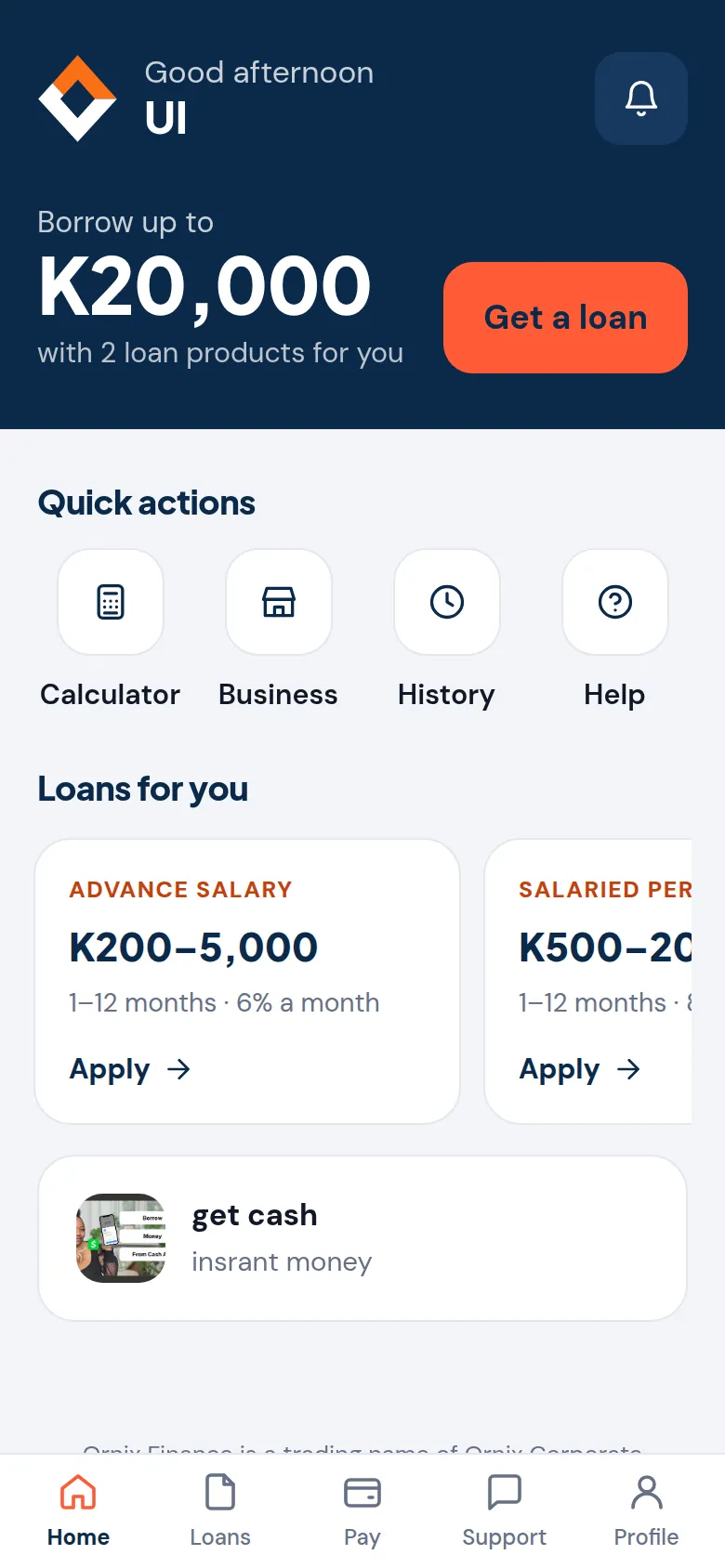
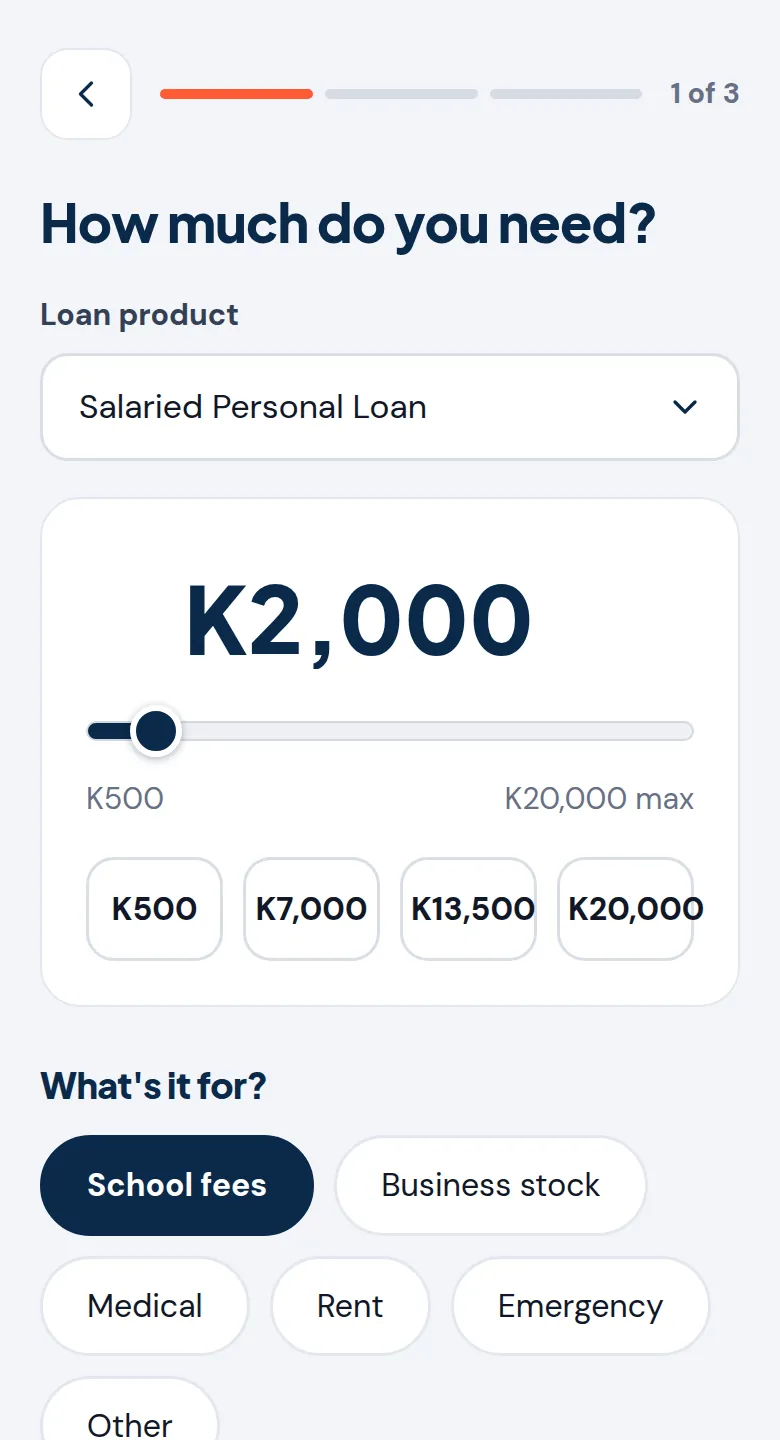
Tap Get a loan on Home, or Apply for a loan under Loans. It takes three steps: first choose the loan product, how much you need and what it's for; then pick a repayment period; then review the full cost and repayment schedule and tap Submit application. Nothing is decided until you submit.
Uploading documents
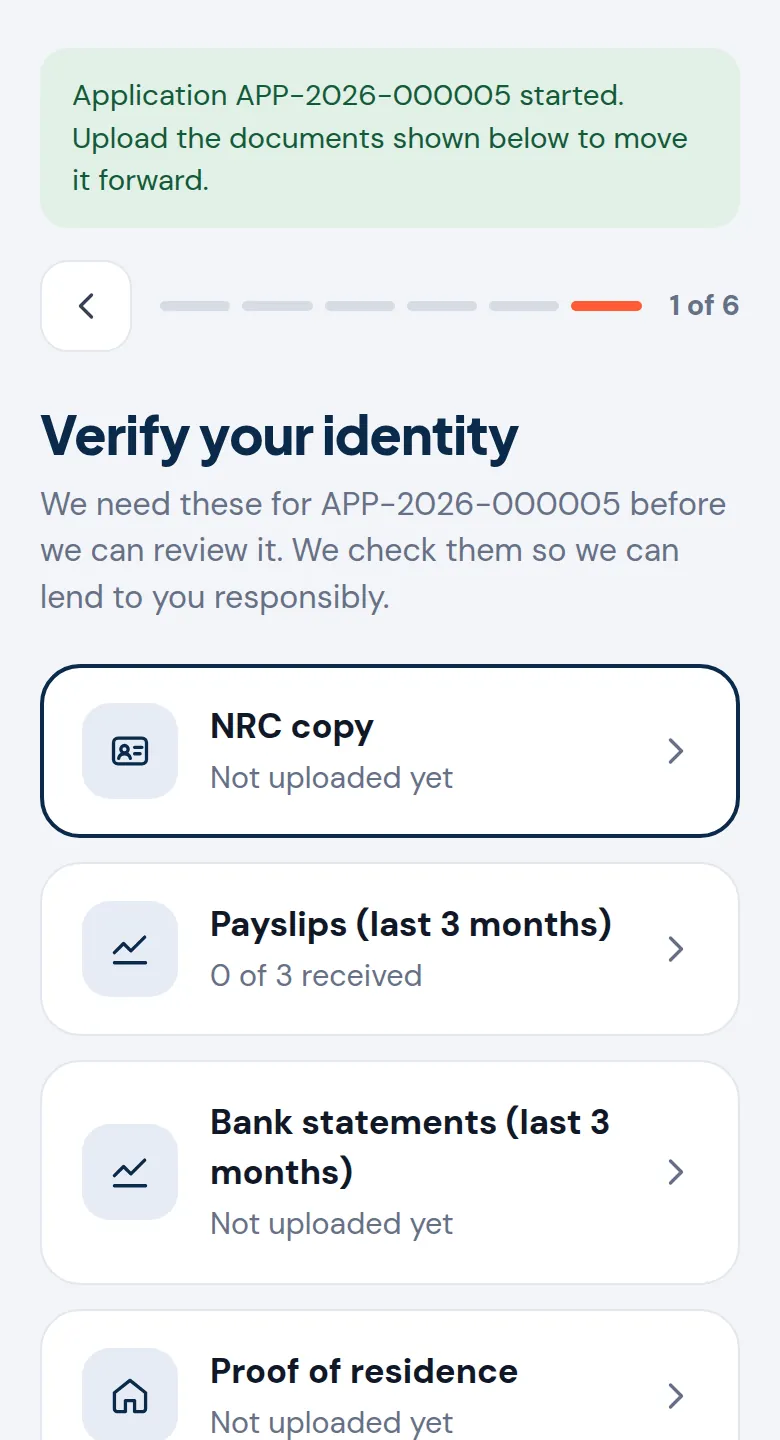
Once you've started an application, its page lists every document that loan product needs, for example a copy of your NRC, your last 3 months' payslips and bank statements, proof of residence and a passport-size photo. Tap an item to upload it from your phone (PDF, JPG or PNG, up to 10 MB). Each item shows how many files it still needs, and turns green once it's complete. When the last one is in, your application is submitted automatically. You can replace a document until we start checking your details; after that, contact Support if something needs changing.
What happens after I submit?
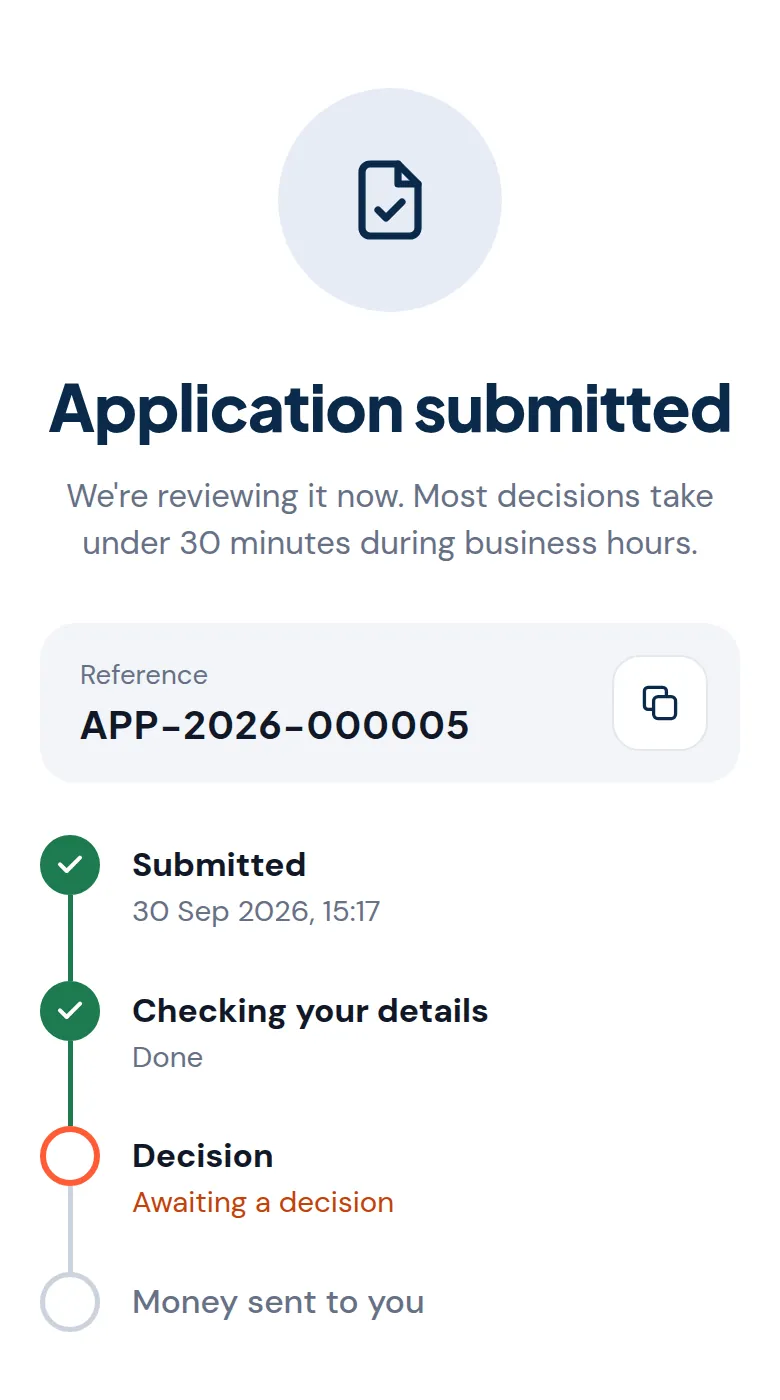
Our team verifies your documents and runs the required checks, then an officer (or a committee, for larger amounts) makes a decision. The application page shows each stage: Submitted, Checking your details, Decision and Money sent to you, and we send you an SMS the moment we decide. There's nothing more for you to do unless we ask you for something specific.
Signing the agreement
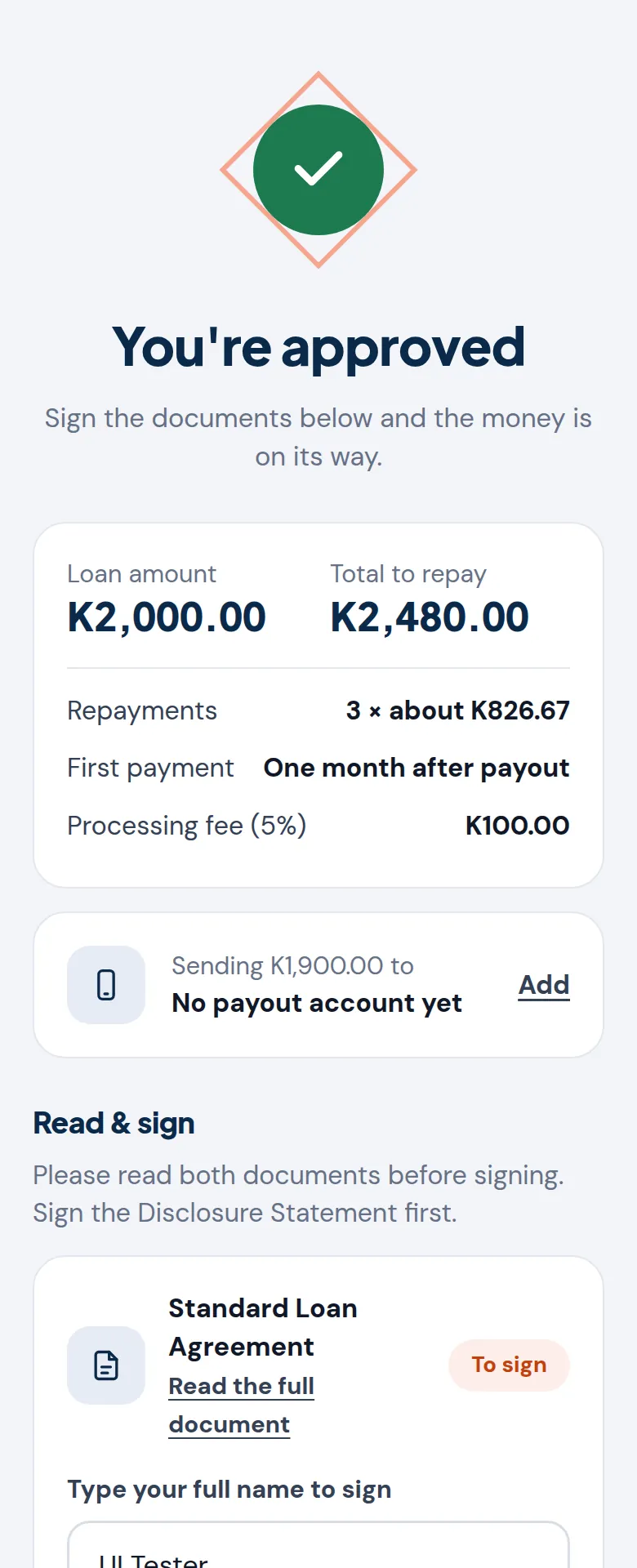
Once approved, your application page shows You're approved with the amount, the total to repay and your payments. Under Read & sign, read and sign the Pre-Agreement Disclosure Statement first, then the Standard Loan Agreement. They set out the exact amount, rate, charges and repayment dates. To sign each one, type your full name as it appears on your NRC, tick the box to confirm you've read it, and tap the sign button. The loan is paid out to your payout account once both are signed and our team has checked the account.
Managing an active loan
Checking your balance and schedule
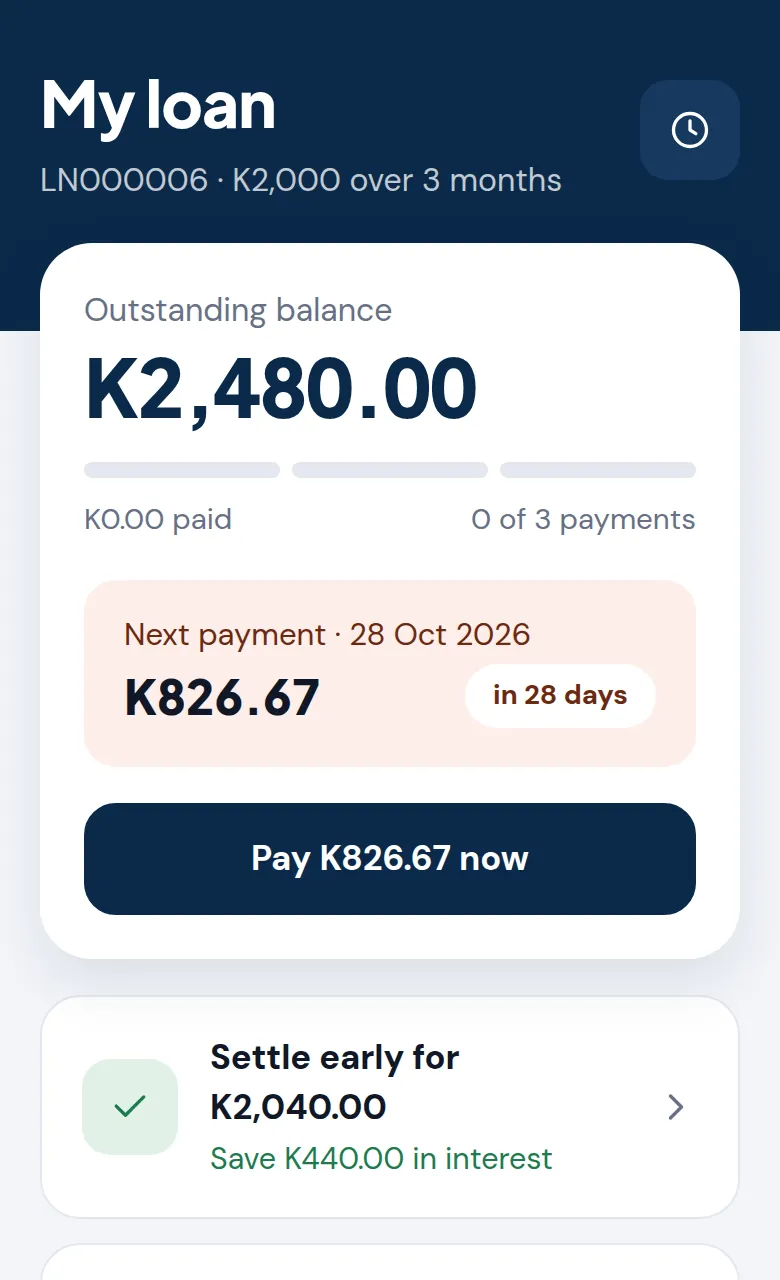
Open the loan from Loans to see what's still outstanding, what you've repaid, and the date and amount of your next payment. Further down are your repayment schedule, your signed documents, a loan statement to download and your payment history.
Making a payment
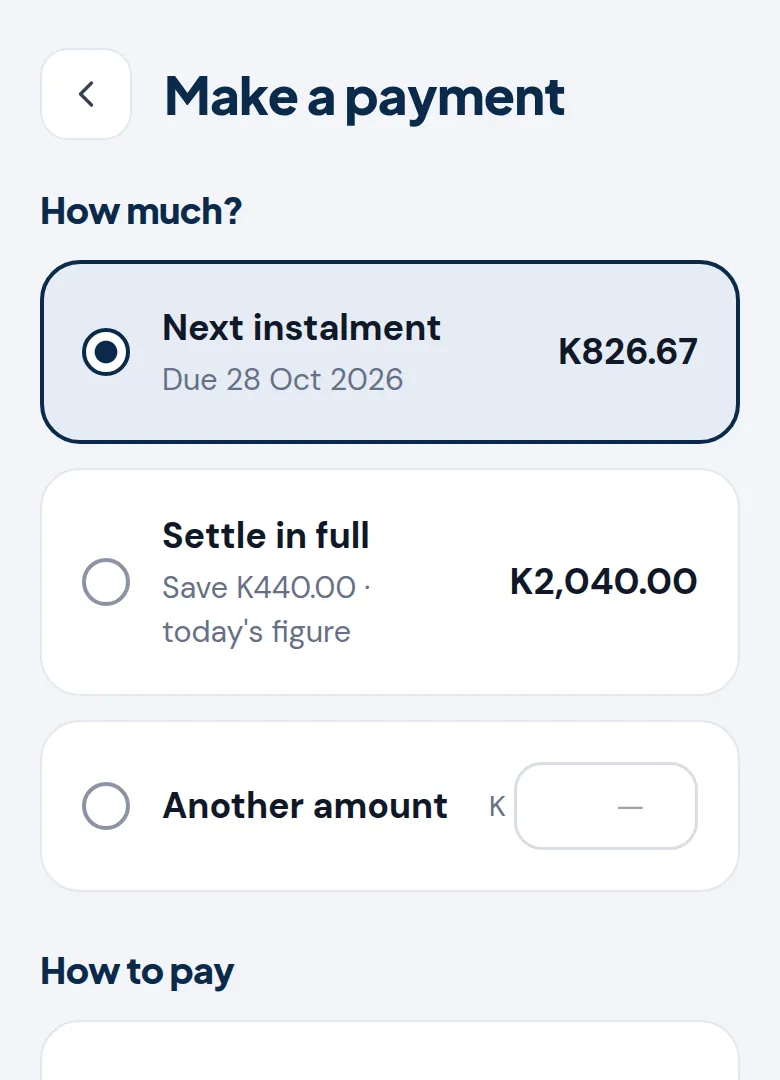
You repay by sending the money to us yourself, from your mobile money wallet or bank. Open Pay and choose how much: your next instalment, the full amount to settle, or another amount. Under How to pay you'll see the amount to send, the reference to quote and where to send it: the same mobile money wallet or bank account your loan was sent from. Always quote your loan reference so we can match your payment. As soon as we record it, your balance and payment history update here, usually within one business day. Contact Support if a payment is missing.
Paying off early
Open Pay and choose Settle in full to see today's figure, or tap Settle early on your loan. It's usually lower than the sum of the remaining payments, since interest not yet earned is waived; the screen shows how much you save.
Finding it hard to pay?
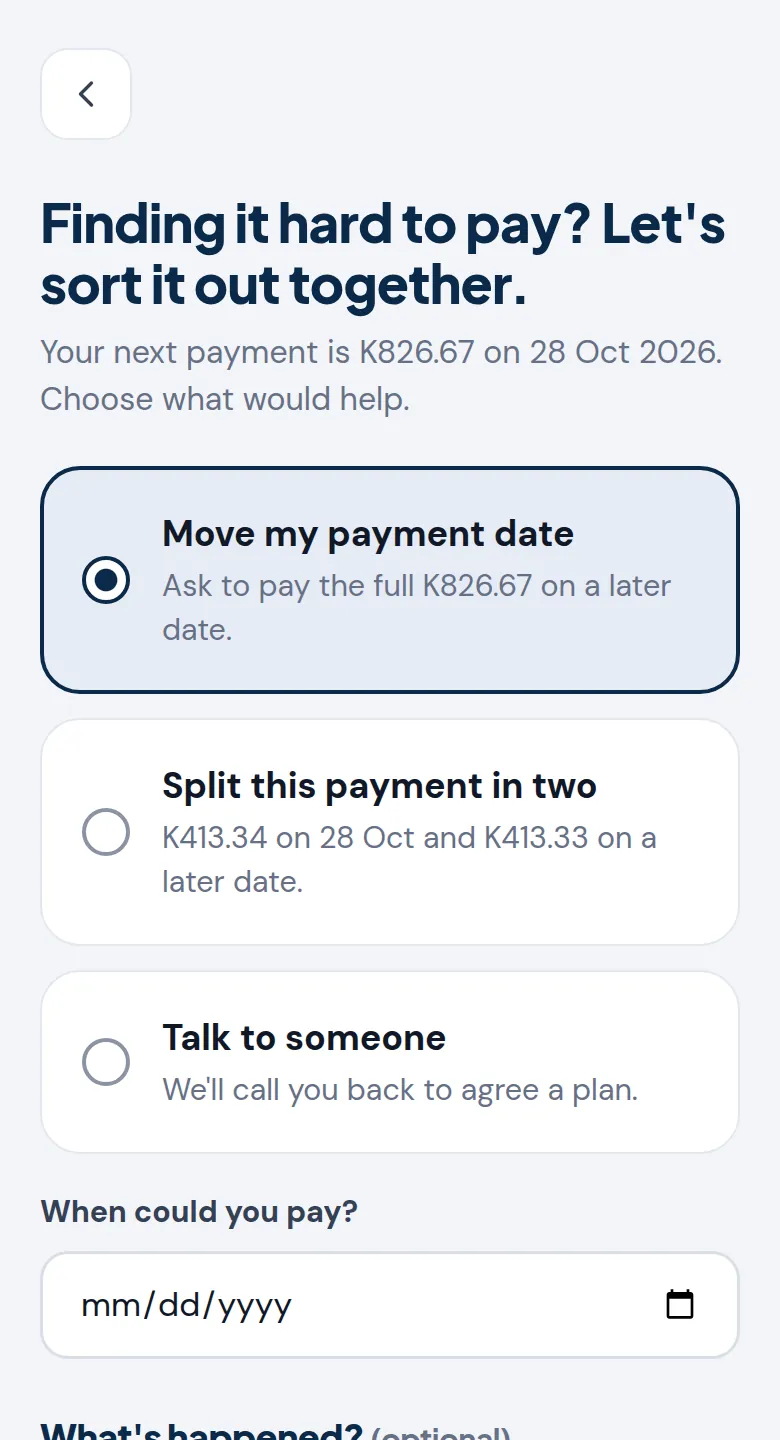
Open your loan and tap Need more time? You can ask to move your payment date, split the payment in two, or talk to someone who'll call you back. Choose a date if asked, add what's happened if you'd like, and send the request. Nothing changes until our team agrees a plan with you.
Payout accounts
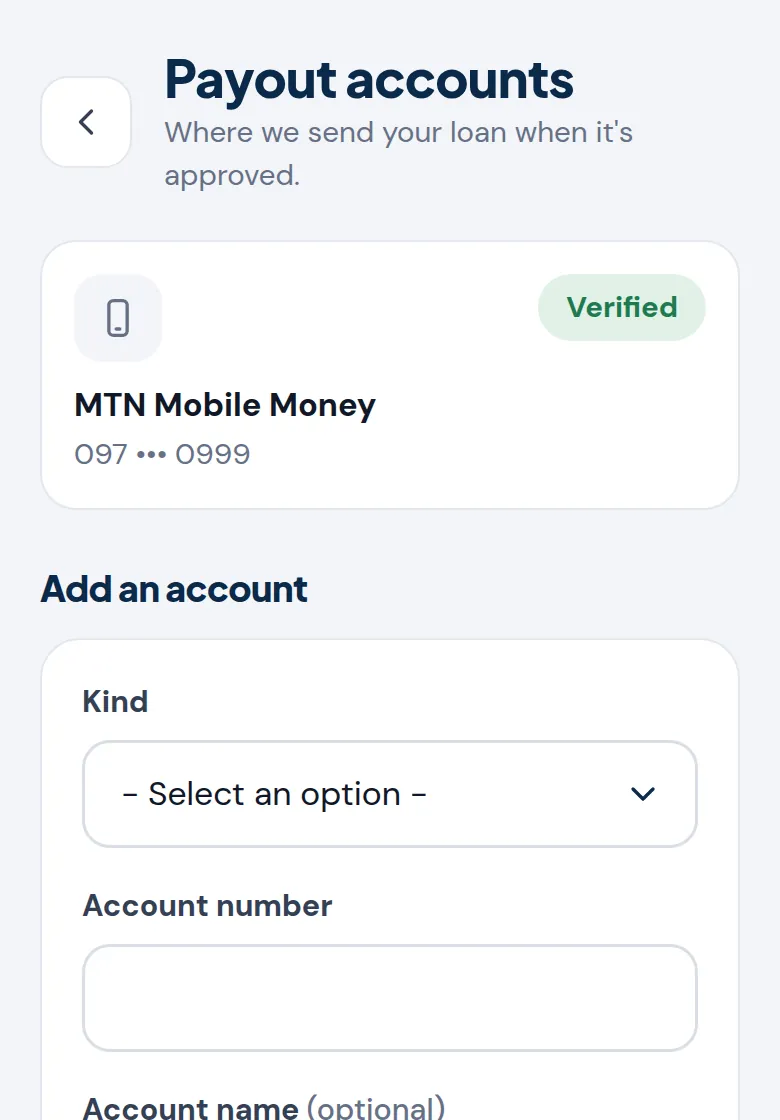
Add the mobile money or bank account your loan is paid into from Profile, then Mobile money & bank. Choose the kind of account and enter its number; it must be registered in your own name. Our team checks every new account, and you need at least one verified account before a loan can be paid out.